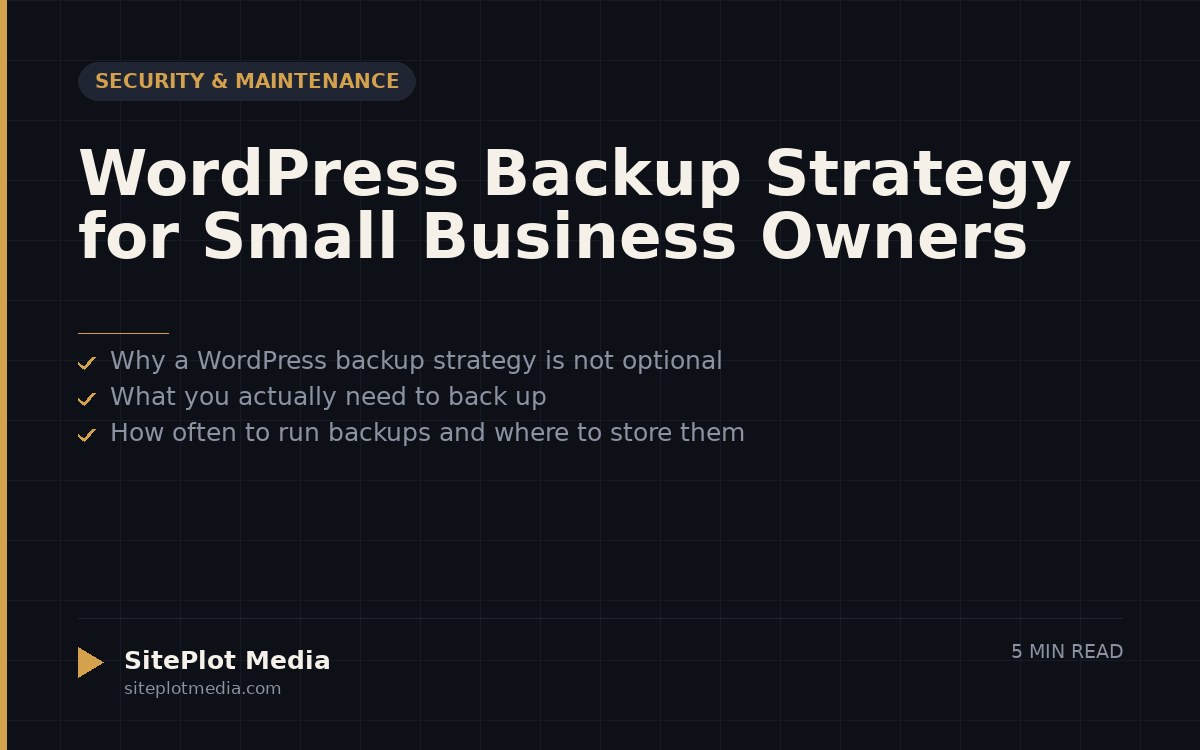
A small business should back up its WordPress site automatically, at least daily, storing copies in at least two separate locations — one off your web server entirely. Without a tested, offsite backup, a single hacking incident or server failure can mean days of lost work and real revenue loss with no clean way to recover.
Why a WordPress backup strategy is not optional
WordPress powers a large share of the web, which also makes it the most targeted platform for automated hacking attempts. Even if your site never gets hacked, servers fail, hosting companies make mistakes, and well-meaning employees accidentally delete things. Any of those events without a usable backup means rebuilding your site from scratch — or paying someone to try to piece it back together.
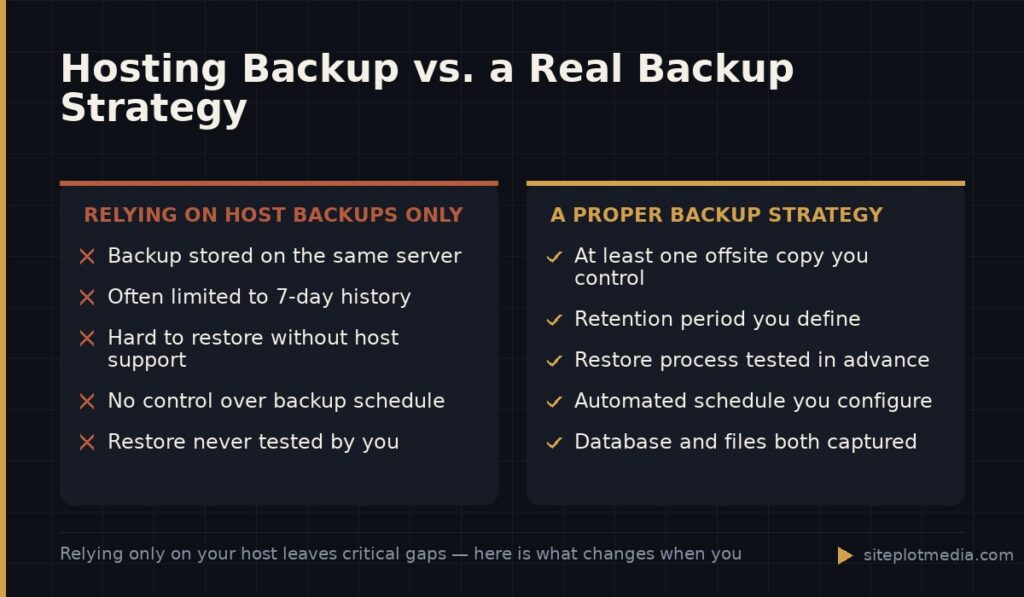
The word “usable” matters here. Many business owners discover too late that their hosting company did make backups — but kept only seven days of history, stored them on the same server that crashed, or made them difficult to actually restore. A backup you cannot quickly restore is not really a backup. The goal of a WordPress backup strategy is not just to have files somewhere; it is to be able to get your site back up quickly when something goes wrong.
What you actually need to back up
A WordPress site has two distinct pieces that both need to be captured. Miss either one and your restore will be incomplete.
- The database — This is where your content lives: every page, blog post, product, order, customer record, and setting. It is a file type called a SQL file, and it updates constantly as your site changes.
- The files — This includes WordPress itself, your theme, all your plugins, and most importantly your uploads folder, which contains every image and document you have ever added to the site. These change less often than the database but are just as essential.
Some backup tools capture both together in one process. Others handle them separately. Either approach works as long as both are included. If a plugin or service only backs up one of the two, it is not a complete solution — keep looking.
This is the kind of thing we handle day to day — you can see how our build process works or browse recent work.
How often to run backups and where to store them
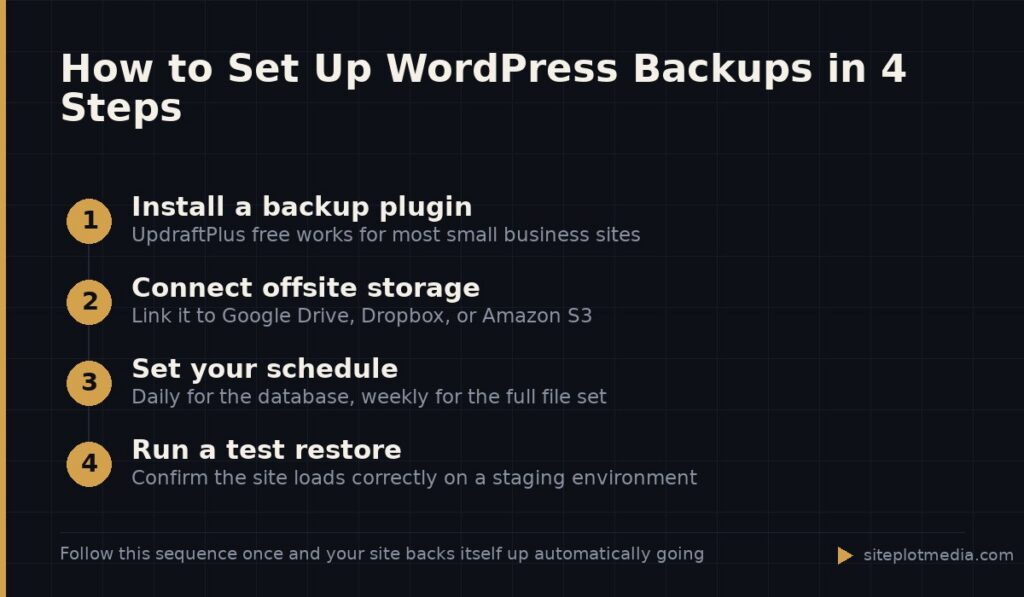
For most small business sites, a daily backup of the database and a weekly backup of the full file set is a reasonable baseline. If you run an e-commerce store where orders come in every day, you may want database backups every few hours, because a restore from last night means losing today’s orders and customer data.
Where you store backups matters as much as how often you run them. The rule of thumb professionals use is called 3-2-1: keep three copies of your data, on two different types of storage, with one copy offsite. For a small business website that translates to something practical:
- Your hosting account (what most hosts provide automatically)
- A cloud storage service like Google Drive, Dropbox, or Amazon S3
- Optionally, a local copy downloaded to your own computer periodically
The critical point is that at least one copy must be somewhere other than your hosting server. If the server goes down or gets compromised, a backup sitting on that same server goes with it.
Tools that handle WordPress backups reliably
You do not need to do any of this manually. Several WordPress plugins automate the entire process. The ones that have held up well in real-world use include:
- UpdraftPlus — The free version handles most small business needs and connects directly to Google Drive, Dropbox, and Amazon S3. The paid version adds incremental backups and more scheduling control.
- BlogVault — A paid service with a strong reputation for reliable restores and a simple dashboard. It also includes a staging environment, which lets you test updates before pushing them live.
- Jetpack Backup (formerly VaultPress) — Automattic’s own backup product. The real-time tier is worth considering for active e-commerce sites because it captures changes as they happen rather than on a schedule.
Your hosting company may also include automated backups in your plan. Hosts like WP Engine, Kinsta, and Flywheel are known for making backups easy to restore from their dashboards. That is a genuine convenience, but it should still be paired with an offsite copy you control — do not rely solely on backups that live inside your hosting account.
The step most people skip: actually testing a restore
Having a backup file sitting in Google Drive is not the same as knowing your site can be recovered. Restoration processes can fail — file permission issues, database connection errors, plugin conflicts — and you do not want to discover that for the first time during an actual emergency.
At least once or twice a year, do a test restore to a staging environment (a private copy of your site that is not visible to the public). Walk through it enough to confirm the site loads, your content is there, and your most important functions — contact forms, checkout, booking systems — still work. This is not glamorous work, but it is the difference between a backup strategy and a false sense of security.
If the technical side of this feels like too much to manage, it is a legitimate reason to bring in a web professional to set it up and verify it. Done right once, it runs quietly in the background without ongoing attention beyond those periodic restore checks.
When managed WordPress care makes more sense than DIY
For some business owners, the right answer is to handle backups yourself using a plugin and an offsite cloud destination. If you are comfortable in your WordPress dashboard, that is a reasonable and affordable path. UpdraftPlus free plus a Google Drive account costs nothing beyond your time to configure it.
For others — especially those running e-commerce, booking systems, or any site where downtime has a direct dollar cost — handing this off to someone whose job is to watch it makes more sense. Managed WordPress care plans typically include automated backups, offsite storage, security monitoring, software updates, and restore support. Pricing varies widely by provider and scope. At Siteplot Media, our ongoing care plan is $500 per month following the initial build period, and backup management, monitoring, and update handling are included. Whether that fits your situation depends on how much your site does and what your time is worth — there is no universal right answer.
Frequently asked questions
How often should I back up my WordPress site?
Most small business sites should run daily database backups and weekly full-site backups at a minimum. If your site processes orders or appointments daily, consider more frequent database backups — every few hours — so you do not lose recent transactions in a restore.
Does my hosting company back up my WordPress site automatically?
Many hosts do create automatic backups, but you should not rely on them alone. Hosting backups are often stored on the same server infrastructure, may only go back seven days, and can be difficult to restore without technical help — always keep at least one offsite copy you control.
What is the best free WordPress backup plugin?
UpdraftPlus is widely regarded as the most reliable free option because it supports direct connection to Google Drive, Dropbox, and Amazon S3, and its restore process is straightforward. The free version is sufficient for most small business websites.
What happens if I restore a backup — will I lose recent changes?
Yes, restoring from a backup rolls your site back to the state it was in when that backup was created, so any changes made after that point will be lost. This is why backup frequency matters: a daily backup limits potential data loss to roughly 24 hours of activity.
Is it enough to back up only the WordPress database?
No — a complete WordPress backup requires both the database and the site files, including your uploads folder where all images and documents are stored. Backing up only the database means your content is recoverable but your images and media are not.