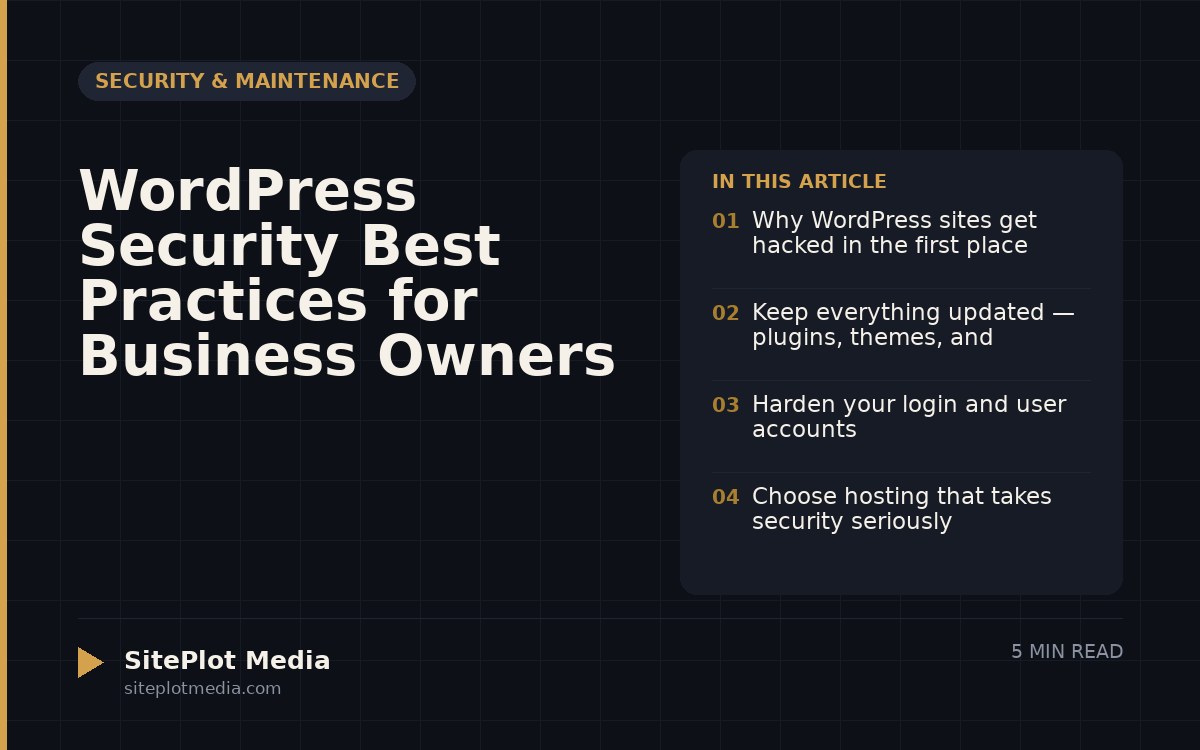
To keep a WordPress site secure, you need to stay current with updates, use strong authentication, choose a reputable host, run daily backups, and install a security plugin that actively monitors your site. These five areas cover the vast majority of real-world attacks against small business websites. Skipping any one of them leaves a door open — but the good news is that none of them require technical expertise to put in place.
Why WordPress sites get hacked in the first place
WordPress powers a large share of the web, which makes it an attractive target. Attackers rarely hand-pick your business specifically — they run automated bots that scan millions of sites at once, looking for known weaknesses: outdated plugins, weak passwords, exposed login pages, or software with published security holes that haven’t been patched.
The encouraging truth is that most successful attacks exploit something preventable. A site running up-to-date software, with strong credentials and a decent host, is not an easy mark. Hackers move on to easier targets. The goal isn’t perfection — it’s making your site meaningfully harder to compromise than average.
Keep everything updated — plugins, themes, and WordPress core
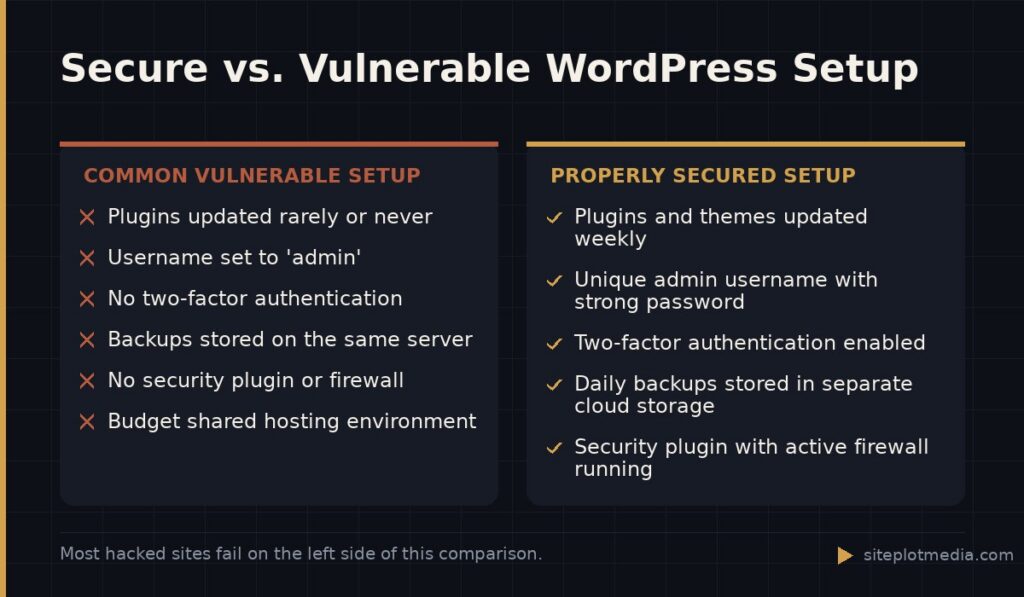
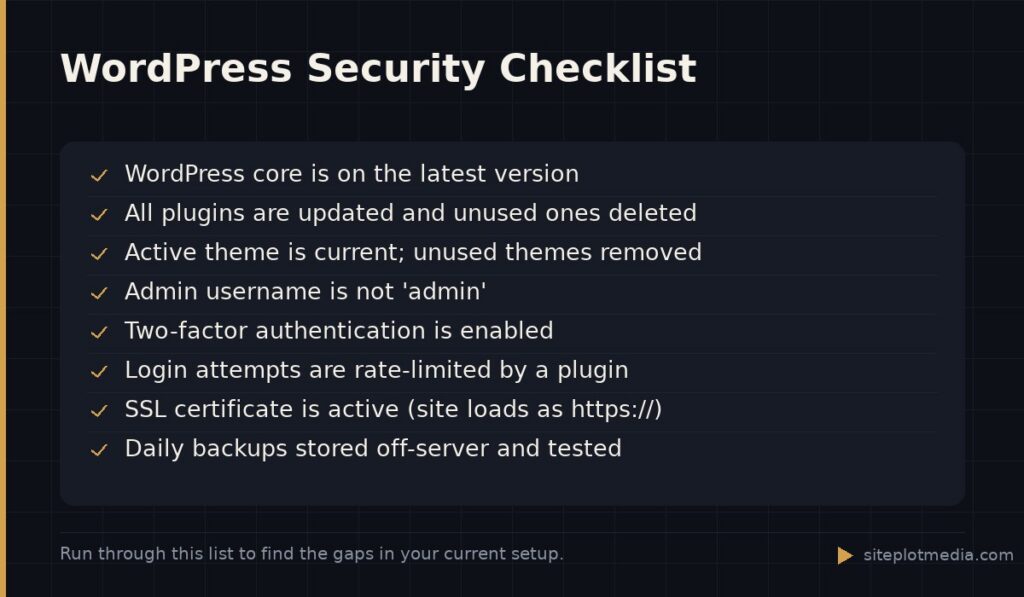
The single most effective thing you can do is keep WordPress itself, every installed plugin, and your active theme updated. When a security vulnerability is discovered in a plugin, the developer releases a fix. The moment that fix is published, the vulnerability is also publicly documented — meaning anyone who hasn’t updated yet is now a known target.
Turn on automatic background updates for minor WordPress releases (this is built into WordPress and safe to enable). For plugins and themes, review updates weekly rather than setting them all to auto-update blindly — occasionally an update can conflict with something else on your site, so a quick check before updating is good practice.
Also delete plugins and themes you aren’t actively using. Inactive software still runs code and can still be exploited. If you installed something to test it and never used it, remove it entirely.
This is the kind of thing we handle day to day — you can see how our build process works or browse recent work.
Harden your login and user accounts
The WordPress login page is the front door, and bots knock on it constantly. A few straightforward changes make a real difference:
- Use a strong, unique password for every WordPress account — a password manager makes this easy.
- Enable two-factor authentication (2FA) so a stolen password alone isn’t enough to get in. Free plugins like WP 2FA handle this in minutes.
- Limit login attempts with a plugin like Limit Login Attempts Reloaded to block bots that try thousands of password combinations automatically.
- Change the default admin username. “admin” is the first username every bot tries. If that’s your username, create a new administrator account with a different name, then delete the old one.
- Audit user accounts periodically. Remove accounts for former employees or contractors immediately. Give users only the role they need — an editor doesn’t need administrator access.
These steps take less than an hour to set up and eliminate a significant category of attacks.
Choose hosting that takes security seriously
Not all WordPress hosting is equal. Budget shared hosting often means your site shares a server with hundreds or thousands of others — if one of those sites is compromised, there’s risk of spillover. Managed WordPress hosts (companies like Kinsta, WP Engine, or Flywheel) build security into the hosting environment itself: server-level firewalls, automatic malware scanning, isolated accounts, and staging environments so you can test changes safely.
Expect to pay more for managed hosting — the range is roughly $30–$100 per month for a small business site, versus $5–$15 on budget shared hosting. For most business owners whose website drives leads or revenue, that difference is worth it. If your site is a low-stakes brochure with no forms and no e-commerce, budget hosting may genuinely be fine. Be honest with yourself about what your site is actually worth to your business.
Regardless of host, make sure your site has an SSL certificate installed and enforced. SSL encrypts the connection between your visitor’s browser and your server. Most reputable hosts provide this free through Let’s Encrypt. If your site URL still starts with http:// rather than https://, fix that today.
Run automatic backups and test them
A reliable backup is your ultimate safety net. If your site is compromised, corrupted, or accidentally broken during an update, a clean backup means you can restore it rather than rebuild it from scratch.
Use a plugin like UpdraftPlus or BlogVault to run daily automated backups and store them somewhere off your server — a separate cloud storage account like Google Drive or Amazon S3. Storing backups only on the same server as your site means a compromised server can take your backups down with it.
Here’s the step most people skip: periodically restore a backup to a staging environment and confirm it actually works. A backup you’ve never tested is a backup you can’t trust. Your host may also offer their own backup system — it’s fine to use that as a second layer, but don’t rely on it as your only copy.
Use a security plugin to monitor and protect actively
A good security plugin acts as an ongoing watchdog. Tools like Wordfence, Solid Security (formerly iThemes Security), or Sucuri Security provide:
- A web application firewall (WAF) that blocks malicious traffic before it reaches WordPress
- Malware scanning that checks your site’s files against known threats
- Alerts when files change unexpectedly — a common sign of a breach
- Login protection features that complement what you’ve already set up
The free versions of Wordfence and Solid Security cover the basics adequately for most small business sites. Paid tiers add real-time threat intelligence and faster scan updates — worth considering if your site handles transactions or sensitive data.
One honest caution: security plugins are not a substitute for the foundational steps above. A security plugin monitoring a site with outdated plugins and weak passwords is like a smoke alarm in a house with no fire extinguisher. Do the fundamentals first, then layer monitoring on top.
If managing all of this feels like a part-time job, that’s a legitimate reason to hand it to someone else. Siteplot Media’s ongoing maintenance retainer handles updates, monitoring, and backups as part of a broader site care package — but honestly, if you’re comfortable following the steps above, you can run a secure WordPress site yourself without outside help.
Frequently asked questions
How often should I update my WordPress plugins?
Check for and apply plugin updates at least once a week. Updates often include security patches, and delaying them leaves your site exposed to vulnerabilities that are publicly known the moment a fix is released.
Is WordPress secure enough for a business website?
Yes — WordPress is secure enough for the vast majority of business websites when it is properly maintained. The platform itself is actively developed with security in mind; most breaches happen because of outdated software, weak passwords, or poor hosting choices, not because WordPress is inherently flawed.
Do I need a security plugin if my host already provides security?
Yes, it's worth running both. Host-level security and a WordPress security plugin protect different layers — your host secures the server environment, while a plugin like Wordfence monitors the WordPress application itself, including file changes, login attempts, and malicious traffic targeting your specific site.
What should I do if my WordPress site gets hacked?
Take the site offline or put it in maintenance mode immediately, then restore from a clean backup taken before the compromise. If you aren't sure when the breach occurred, use a security plugin or a service like Sucuri to scan and clean the files rather than restoring a backup that may already be infected.
Is two-factor authentication really necessary for a small business site?
Yes, and it takes about ten minutes to set up. Two-factor authentication stops credential-stuffing attacks cold — even if a password is stolen or guessed, an attacker still can't log in without the second factor. It is one of the highest-impact, lowest-effort security steps available.