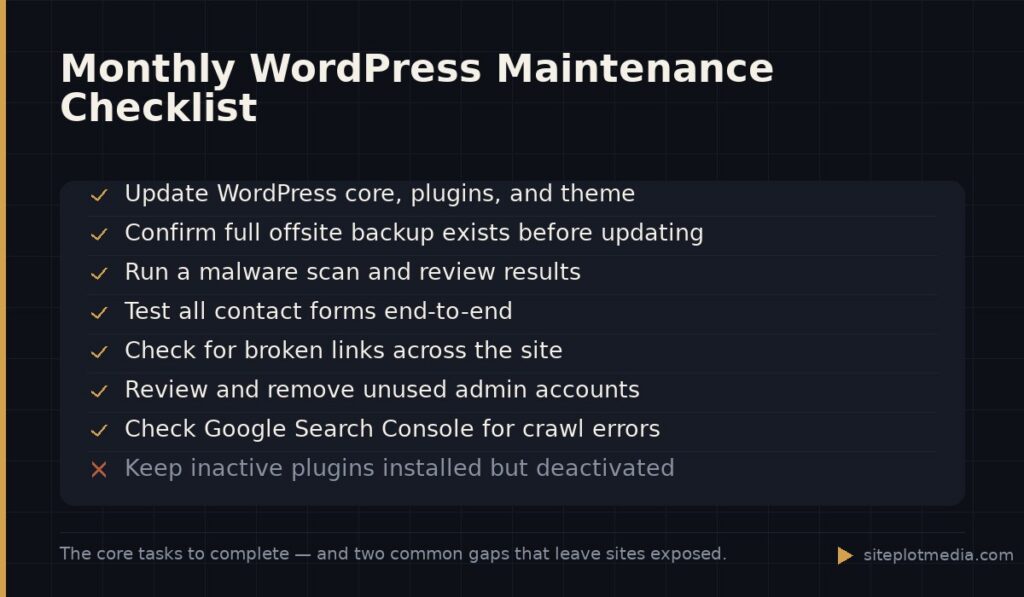
A monthly WordPress maintenance checklist should cover five core areas: software updates (core, themes, and plugins), offsite backups, security scans, performance checks, and a quick review of broken links or form functionality. Skipping these tasks does not cause problems every month — but when something does go wrong, a missed backup or an unpatched plugin is almost always involved. Doing this work consistently takes under two hours a month and prevents the kind of emergency that can cost far more to fix.
Why monthly maintenance matters more than you might think
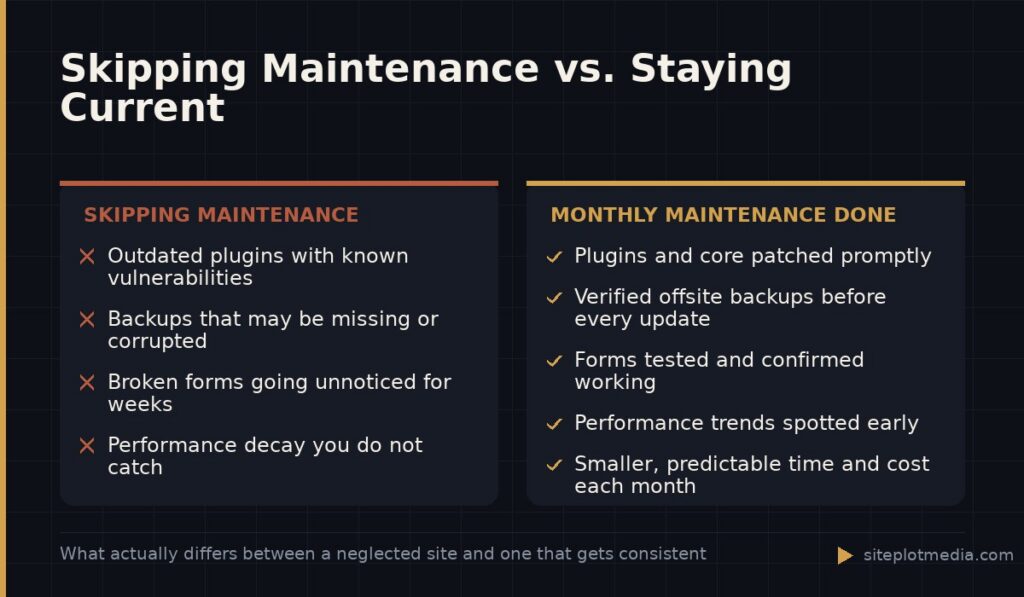
WordPress powers a large share of the web, which also makes it a popular target. Plugin and theme authors push security patches regularly, and those patches only help you if they are actually installed. An outdated plugin is not a theoretical risk — it is one of the most common entry points attackers use to compromise a site.
Beyond security, WordPress sites drift over time. Plugins conflict with each other after updates. Images accumulate without being compressed. A contact form stops sending emails and nobody notices for weeks. Monthly maintenance is how you catch these things before a customer does.
You do not need to be technical to oversee this. You do need a checklist someone is actually working through each month — whether that is you, a developer you trust, or an agency you have hired for the purpose.
Updates: the single most important task on the list
WordPress core, themes, and plugins all receive updates. Some updates add features. Many fix security vulnerabilities. A few, if applied carelessly, can break something on your site. That last risk is why a lot of business owners avoid updating — but the risk of not updating is higher.
The right process is: take a full backup first, then apply updates in a staging environment (a private copy of your site) if you have one, then push to the live site. If you do not have a staging environment, at minimum take that backup before touching anything.
- Update WordPress core when a new version is released
- Update all active plugins — inactive plugins should be deleted, not just deactivated
- Update your active theme
- Check that the site still loads and key pages still work after updating
Auto-updates exist but carry risk on a heavily customized site. For most small business sites with a modest number of plugins, auto-updates for minor versions (security patches) are reasonable. Auto-updating major versions without testing first is not.
This is the kind of thing we handle day to day — you can see how our build process works or browse recent work.
Backups: your real insurance policy
A backup that lives only on the same server as your site is not a backup in any meaningful sense — if the server is compromised or the host has a failure, both copies are gone. Your backups need to go somewhere separate: cloud storage like Amazon S3 or Google Drive, or your own local machine.
Monthly is the absolute minimum backup frequency for a site that changes infrequently. If you publish blog posts, update products, or take orders, you want daily automated backups. For most businesses, a plugin like UpdraftPlus or a host-level backup service sent offsite handles this automatically once it is configured.
- Confirm at least one full backup exists before running updates
- Verify the backup is stored offsite, not only on your hosting server
- Spot-check that a recent backup is complete and not corrupted — actually open the backup file and confirm it has content
Security scans and access hygiene
Running a malware scan monthly catches infections early. Tools like Wordfence or Sucuri can scan your files and database for known malicious code. Many hosts also offer server-level scanning. A clean scan is reassuring. A flagged file needs immediate attention — do not dismiss alerts without investigating.
Access hygiene is less exciting but equally important. Once a month is a reasonable time to review who has administrator access to your WordPress dashboard. Former employees, old agency accounts, and one-off contractors should not have active accounts. Every extra administrator account is a potential attack surface.
- Run a malware scan and review the results
- Review user accounts — remove anyone who no longer needs access
- Confirm your WordPress admin login URL is not the default
/wp-admin(this alone reduces automated login attempts significantly) - Check that two-factor authentication is enabled for all administrator accounts
Performance, links, and forms: the user-facing checks
A slow site costs you visitors. Most performance degradation happens gradually — a new plugin adds weight, images go uncompressed, a caching layer stops working after an update. Once a month, run your homepage through a free tool like Google PageSpeed Insights and note whether the score has dropped since last month. You do not need a perfect score, but you want to notice trends.
Broken links and broken forms are quiet killers for small business sites. A contact form that silently fails means inquiries are going nowhere. A broken link on a product page means a lost sale. Neither shows up in your analytics as an error — they just disappear.
- Test every contact form and confirm you receive the submission
- Run a broken link check using a free crawler or a plugin like Broken Link Checker
- Load your five most important pages on a phone and confirm they look and work correctly
- Check your Google Search Console for any new crawl errors or manual actions
Who should actually do this work
If you enjoy this kind of task and have a relatively simple WordPress site, doing it yourself with a documented checklist is completely reasonable. The tools mentioned above are accessible to non-developers, and the tasks themselves are more about consistency than technical skill.
If you would rather not think about it, or if your site is revenue-critical, handing it to a professional makes sense. Expect to pay anywhere from $50 to $300 per month for a basic managed maintenance plan, depending on what is included and the scope of your site. Plans that include priority support, staging environments, and performance optimization cost more.
At Siteplot Media, ongoing maintenance is built into our post-build retainer model — sites we build come with 90 days of included care, after which maintenance continues at $500 per month as part of our broader engagement. That is not the right fit for every business, and we will tell you that plainly. If your site is small, stable, and you have a trusted developer already, a lighter arrangement may serve you just as well.
Frequently asked questions
How long does WordPress maintenance actually take each month?
For a typical small business site, a thorough monthly maintenance pass takes between one and two hours. Sites with more plugins, custom integrations, or frequent content changes may take longer, especially if an update causes a conflict that needs troubleshooting.
What happens if I skip WordPress updates for a few months?
Skipping updates increases your exposure to known security vulnerabilities — attackers actively scan for sites running outdated plugin versions. It also means that when you do update after a long gap, you are more likely to encounter conflicts between plugins that have diverged significantly.
Do I need a staging site to do WordPress maintenance safely?
A staging environment is best practice for any site where downtime would cause real harm, but it is not strictly required for every situation. If you take a verified full backup before updating and your site is not processing live transactions during the maintenance window, updating directly on the live site is a reasonable trade-off for simpler sites.
How often should I back up my WordPress site?
Daily automated backups are the right answer for any site that changes regularly — ecommerce stores, sites with active blogs, or sites that collect form submissions. Static brochure sites that change infrequently can get by with weekly backups, but daily is not expensive to set up and removes the need to make that judgment call.
Is managed WordPress hosting the same as paying for maintenance?
Managed hosting (from hosts like WP Engine or Kinsta) handles server-level updates, some security hardening, and infrastructure — but it does not review your plugin versions, test your forms, check for broken links, or audit user access. Managed hosting and a maintenance plan serve different purposes and are both worth having for a business-critical site.