

The easiest way to add schema markup to a WordPress site is to install a dedicated schema plugin — such as Rank Math or Schema Pro — which generates and injects the structured data automatically based on your content type. You do not need to write any code to get started, though more advanced schema types may require manual configuration or developer help. Schema markup tells search engines and AI tools exactly what your content means, which can improve how your pages appear in results.
What schema markup actually is (and why it matters now)
Schema markup is a vocabulary of tags — invisible to website visitors — that you add to your pages to describe your content in terms a search engine or AI tool can read with precision. Instead of guessing that a block of text is a business address, Google can be told explicitly: this is a LocalBusiness, this is its telephone, this is its openingHoursSpecification. The vocabulary itself comes from Schema.org, a shared standard maintained by Google, Microsoft, Yahoo, and Yandex.
This matters more than it used to. AI-driven answer engines — including Google’s AI Overviews and tools like Perplexity — pull structured facts to construct direct answers. If your site gives them clean, machine-readable data, your business information is more likely to surface accurately and prominently. Schema is not a ranking factor in the traditional sense, but it feeds the systems that decide what appears above organic results.
The two main ways to add schema markup in WordPress
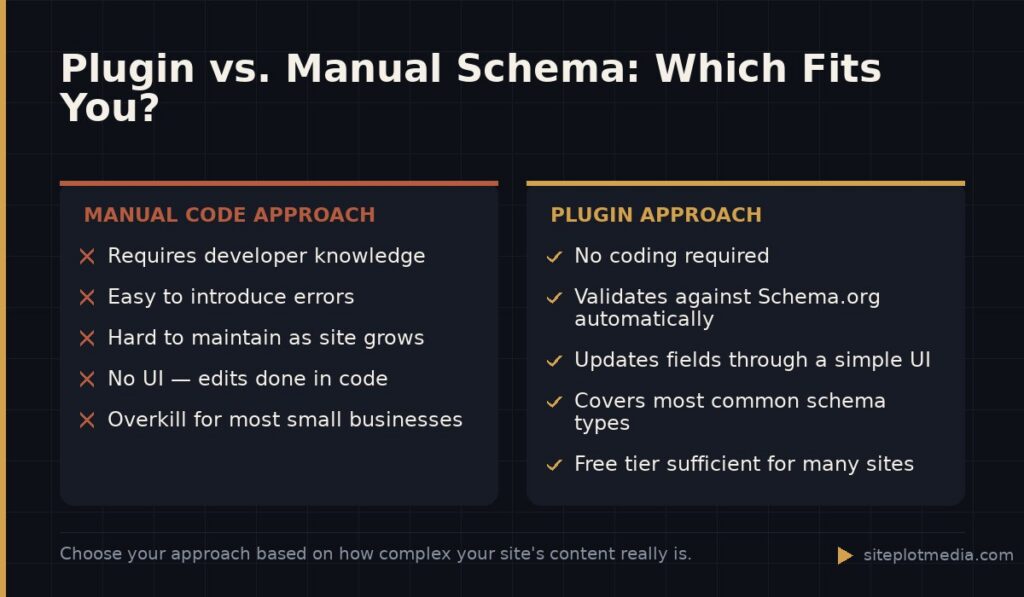
There are two practical paths: use a plugin, or add the code manually. For most small and mid-sized businesses, a plugin is the right starting point.
Plugin approach. Plugins like Rank Math (free tier is generous), Yoast SEO (paid plans), and Schema Pro handle the most common schema types — Article, LocalBusiness, Product, FAQ, Review, BreadcrumbList — by reading your existing WordPress data and generating the markup for you. You fill out fields in a settings panel; the plugin writes the JSON-LD code (a lightweight data format that Google prefers) and places it in your page’s <head> automatically.
Manual approach. If you need a schema type the plugin doesn’t support, or you want precise control over every field, a developer can write JSON-LD blocks and add them directly to your theme’s templates or via a code snippet plugin like WPCode. This is more work but gives you flexibility for complex scenarios like multi-location businesses, complex service catalogs, or event listings with specific attributes.
Most businesses can get 80–90 percent of the value from a well-configured plugin without touching a line of code. The manual route earns its complexity only when your situation is genuinely unusual.
This is the kind of thing we handle day to day — you can see how our build process works or browse recent work.
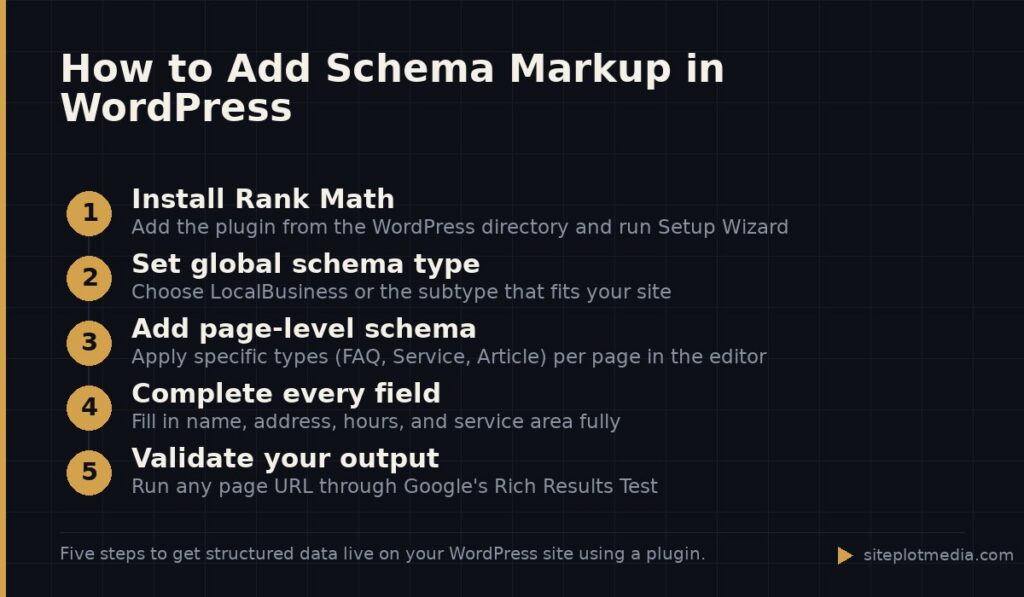
Step-by-step: setting up schema with a free plugin
The steps below use Rank Math as the example because its free version covers the schema types most small businesses need. The logic applies to other plugins too.
- Install and activate Rank Math from the WordPress plugin directory. Run the Setup Wizard — it asks about your site type (local business, e-commerce, blog, etc.) and uses your answers to pre-configure basic schema.
- Set your global schema type. Under Rank Math → Titles & Meta, choose the schema type that best describes your site overall. For a service business, that is usually LocalBusiness or one of its subtypes (MedicalBusiness, LegalService, etc.).
- Add page-level schema. On any individual post or page, open the Rank Math panel in the editor sidebar. Under the Schema tab, you can apply a specific schema type to that page — FAQ schema for a FAQ page, Service schema for a service page, Article for blog posts.
- Fill in the fields completely. Partial schema is better than none, but complete schema — business name, address, phone, hours, service area — gives search engines the most to work with.
- Validate your output. Paste any page URL into Google’s Rich Results Test (search for it) or Schema.org’s validator. These tools show you exactly what schema is detected and flag any errors. Fix errors before moving on.
This process takes most business owners one to two hours for a site with a handful of page types. If your site has dozens of service pages or product categories, budget more time for the page-level configurations.
Schema types worth prioritizing for service businesses
Not all schema types carry equal weight. Focus on the ones most relevant to how customers find you.
- LocalBusiness (or its subtype). Name, address, phone, hours, geographic area served. This is the foundation for local search and map-based queries.
- Service. Describes a specific service you offer — useful when you have dedicated pages for each service.
- FAQPage. If you have a genuine FAQ section, this schema can earn an expanded result in Google that shows the questions and answers directly on the results page.
- BreadcrumbList. Tells Google the hierarchy of your site (Home → Services → Web Design), which appears as a readable path in search results instead of a raw URL.
- WebSite. Enables the sitelinks search box in some cases, and signals basic site identity to crawlers.
Schema for reviews, events, and products becomes relevant when those features are actually part of your site. Adding schema types that don’t reflect real content is against Google’s guidelines and can backfire.
When a plugin isn't enough — and when it is
Be honest with yourself about your situation before spending money. If you run a single-location service business with a modest number of service pages, Rank Math’s free tier will handle your schema needs well. You do not need a developer or a premium plugin for straightforward use cases.
You may want professional help if: your site has complex content types (multiple locations, structured product data, event calendars); your theme or page builder conflicts with how the plugin injects schema; you’ve run validation and are seeing persistent errors you can’t diagnose; or you want schema to be part of a broader technical SEO project where the pieces need to work together.
At Siteplot Media, schema configuration is part of our technical SEO engagements because it rarely exists in isolation — it connects to site architecture, page content, and how the site is built. If that level of integrated work is what you need, our builds start at $5,000 one-time with ongoing support after a 90-day included period. But if you just need schema on a simple WordPress site, a free plugin and an afternoon is a completely reasonable place to start.
Common mistakes to avoid when implementing schema
Schema done wrong can be worse than no schema, because Google may ignore your markup or, in some cases, apply a manual penalty for misleading structured data.
- Marking up content that isn’t on the page. Every field in your schema should correspond to something a human visitor can see. If your JSON-LD says you have a 5-star rating but no reviews are visible on the page, that’s a violation.
- Duplicate schema from multiple sources. Some themes output their own schema, and so does your SEO plugin. The result can be conflicting or redundant markup. Check your validation output for duplicates and disable schema output at the theme level if your plugin is handling it.
- Using deprecated schema properties. Schema.org updates its vocabulary. Properties that were valid a few years ago may now be deprecated. The validator will flag these; don’t ignore the warnings.
- Setting it and forgetting it. When you add a new service, change your hours, or open a second location, your schema needs to be updated too. Build a habit of checking your schema when you make meaningful changes to your site content.
Frequently asked questions
Does schema markup directly improve my Google rankings?
Schema markup is not a direct ranking factor, but it can improve how your pages appear in search results — including rich snippets, knowledge panels, and AI-generated answers — which can increase click-through rates. Think of it as helping search engines understand and display your content better, not as a shortcut to ranking higher.
Is Rank Math better than Yoast for schema markup?
Rank Math's free tier includes more schema types than Yoast's free tier, making it the stronger choice for schema specifically at no cost. Yoast's premium plan closes the gap, but for most small businesses starting out, Rank Math free is sufficient.
Can I add schema markup without a plugin by editing my theme files?
Yes — you can add JSON-LD schema blocks directly to your WordPress theme templates or use a code snippet plugin like WPCode to inject them without editing theme files. This requires knowing which schema type and properties you need, and you should validate the output with Google's Rich Results Test after adding it.
How do I know if my schema markup is working?
Use Google's Rich Results Test (search for it) or the Schema Markup Validator at validator.schema.org — paste in your page URL and both tools will show you exactly what structured data is detected and whether there are any errors or warnings.
Do I need schema markup on every page of my site?
No — focus on the pages where structured data provides real value: your homepage, service pages, contact page, FAQ page, and any blog posts you want treated as Articles. Utility pages like privacy policies or login screens don't benefit meaningfully from schema.