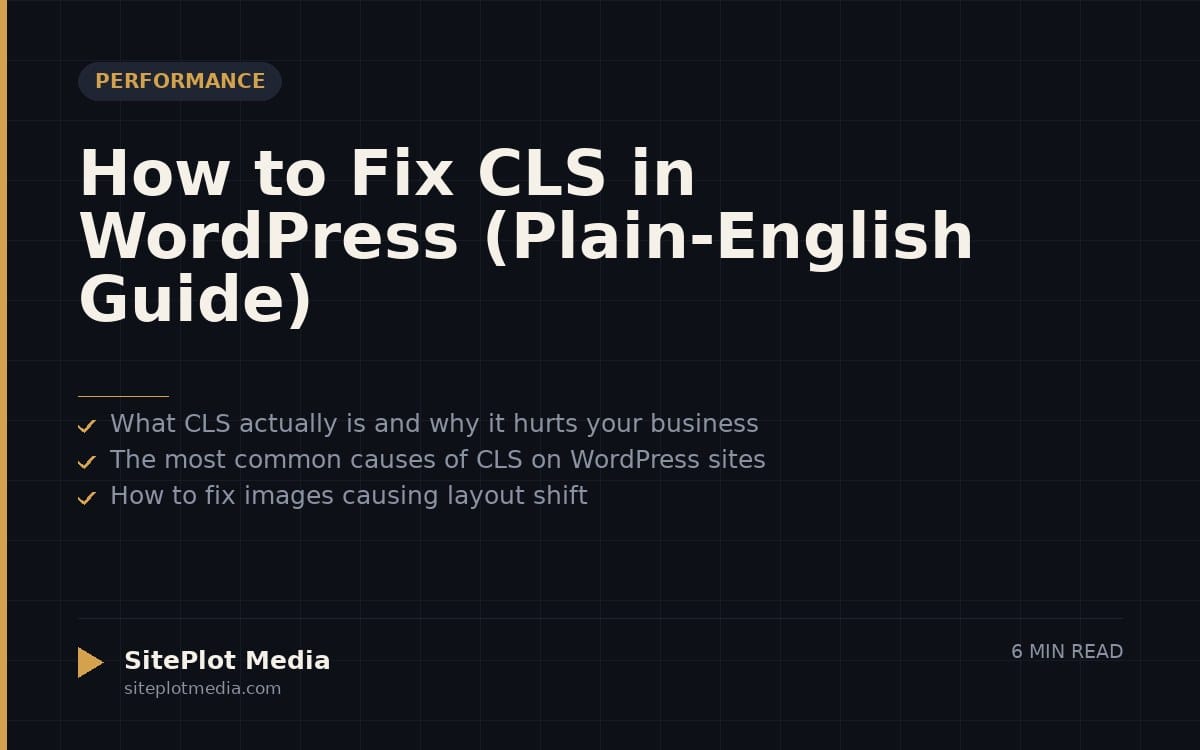
To fix Cumulative Layout Shift (CLS) on a WordPress site, you need to give every image, video, and ad a reserved space in the layout before it loads, so the page stops jumping around as content appears. The most common culprits are images without defined dimensions, fonts that swap in late, and ads or embeds injected after the page renders. Fixing those three areas will resolve the majority of CLS problems on most WordPress sites.
What CLS actually is and why it hurts your business
Cumulative Layout Shift is a Google Core Web Vitals metric that measures how much your page content unexpectedly moves while it is loading. You have experienced it yourself: you are about to tap a button on your phone, the page shifts, and you tap the wrong thing. That frustration is what CLS measures.
Google uses Core Web Vitals as a ranking signal, so a high CLS score can quietly suppress your search visibility. More importantly, layout instability erodes trust. If your site feels broken, visitors leave before they ever read your offer. A score of 0.1 or below is considered good by Google; above 0.25 is considered poor and warrants immediate attention.
The most common causes of CLS on WordPress sites
Before you fix anything, you need to know what is causing the shift. The free tool Google PageSpeed Insights (pagespeed.web.dev) will show you a CLS score and, in the Diagnostics section, flag the specific elements responsible. Run your homepage and a representative interior page — the causes are sometimes different.
The most frequent offenders on WordPress sites are:
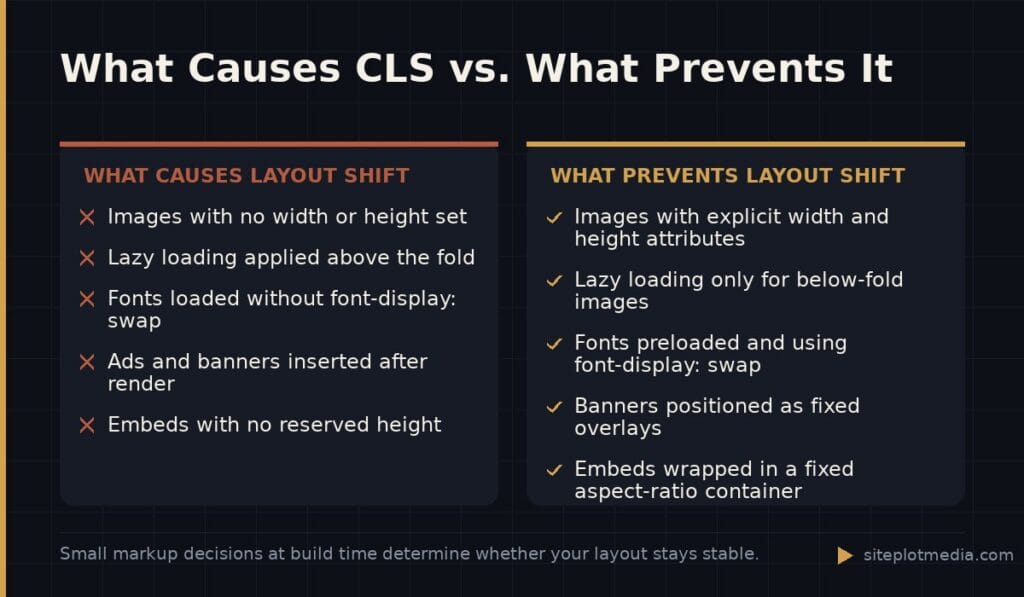
- Images without width and height attributes. When a browser does not know how tall an image will be, it reserves zero space, then shoves everything down when the image loads.
- Web fonts that load late. If your custom font takes a moment to arrive, the browser renders text in a fallback font first, then re-renders it in the real font — shifting everything around it.
- Ads, cookie banners, and chat widgets injected into the page after it has already rendered.
- Lazy-loaded elements above the fold. Lazy loading is useful for images the user cannot see yet, but it causes layout shift when applied to images that are immediately visible on load.
This is the kind of thing we handle day to day — you can see how our build process works or browse recent work.
How to fix images causing layout shift
The single highest-impact fix for most sites is ensuring every image has explicit width and height attributes in its HTML. This tells the browser exactly how much vertical space to reserve before the image file even begins downloading, so nothing shifts. WordPress has added this automatically since version 5.5, but images uploaded or inserted before that update, or images added through certain page builders, may still be missing these attributes.
If you are using a caching or optimization plugin like WP Rocket or NitroPack, check whether it offers a “add missing image dimensions” option — most do, and toggling it on is a one-minute fix. For images in your theme template files rather than your content editor, a developer may need to update the HTML directly.
Also check your above-the-fold images — typically your hero banner or featured image. Make sure they are not lazy-loaded. The loading="lazy" attribute is appropriate for images lower on the page, but applying it to the first visible image forces the browser to delay loading it, which often causes a visible shift. WordPress added the fetchpriority="high" attribute to the largest above-the-fold image in version 6.3, so staying current with WordPress core updates helps here as well.
How to fix fonts and third-party embeds
Font-related CLS is common on sites using Google Fonts or custom typefaces. The browser loads your page in a fallback font, then swaps to the real one when it arrives, nudging text blocks up or down. Two CSS properties help significantly. First, add font-display: swap to your font declarations — this tells the browser to use the fallback until the real font is ready, which sounds like it would make CLS worse, but it actually gives the browser a clear signal to handle the swap predictably. Second, preload your primary font file using a <link rel="preload"> tag so it arrives sooner. Most caching plugins expose both options without requiring you to edit code manually.
For third-party embeds — YouTube videos, Google Maps, social media posts, chat widgets — the issue is that the embed does not know its final size when it loads. The reliable fix is to give the embed a fixed-height container in CSS, or use an aspect-ratio wrapper that reserves proportional space. If you are using Elementor, Divi, or another page builder to insert embeds, check whether the block has a minimum height or aspect ratio setting. For cookie consent banners and chat bubbles that pop up after load, position them as overlays (using CSS position: fixed) so they float above the page rather than pushing content around.
A practical order of operations for fixing CLS
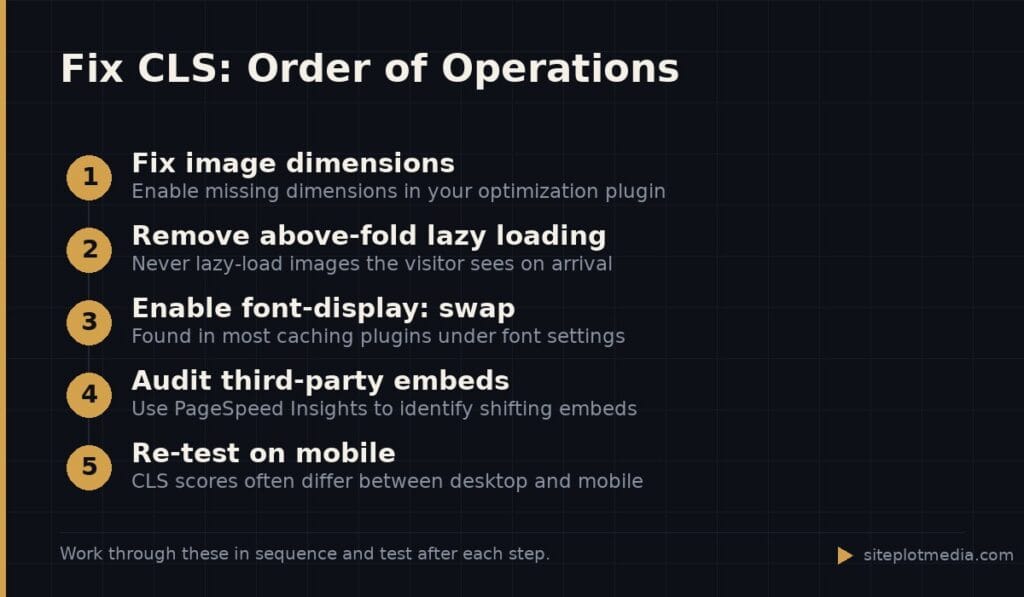
Trying to fix everything at once makes it hard to know what actually worked. Work through these in order, testing with PageSpeed Insights after each change:
- Step 1: Fix image dimensions — enable the option in your optimization plugin, or have a developer audit your theme templates.
- Step 2: Remove lazy loading from above-the-fold images — check your theme settings and page builder blocks for this option.
- Step 3: Enable font-display: swap — available in most caching plugins under the “fonts” or “preload” section.
- Step 4: Audit third-party scripts — in PageSpeed Insights, look at the “Avoid large layout shifts” diagnostic and identify any third-party embed causing the shift.
- Step 5: Re-test on mobile — CLS scores often differ between desktop and mobile because mobile layouts reflow content differently.
For most small business WordPress sites, steps one through three alone will move a poor CLS score into the good range. If your score is still above 0.1 after those fixes, the problem is likely a specific embed or a page builder generating layout-unstable markup, which may require a developer to resolve.
When DIY fixes are not enough
Many CLS problems are genuinely fixable by a non-developer using the steps above. But some situations call for deeper work: a page builder generating bloated or structurally unstable HTML, a theme that hardcodes problematic image markup, or a stack of plugins creating conflicts that no single toggle can resolve. If you have worked through the checklist and your score has not improved meaningfully, the issue is architectural rather than configurational.
A thorough performance audit and rebuild — addressing not just CLS but the full set of Core Web Vitals — typically runs between $2,500 and $8,000 depending on the size and complexity of the site. Siteplot Media offers a complete performance-first site build starting at $5,000 one-time, with ongoing maintenance included for the first 90 days and available at $500 per month after that. That said, if your CLS score is borderline and your site otherwise performs well, the cheaper path of plugin-level fixes is completely reasonable — not every site needs a rebuild.
Frequently asked questions
What is a good CLS score for a WordPress site?
A CLS score of 0.1 or below is considered good by Google's Core Web Vitals standards. Scores above 0.25 are rated poor and are most likely to affect both user experience and search rankings.
Will fixing CLS improve my Google rankings?
Fixing CLS can positively influence your rankings because Core Web Vitals are a confirmed Google ranking signal, but it is one factor among many and does not guarantee a ranking change. The more direct benefit is that a stable layout reduces bounce rates and improves user experience.
Does Elementor cause CLS problems?
Elementor can contribute to CLS because it generates additional CSS and JavaScript that sometimes interferes with how images and fonts load, but it does not automatically cause a failing score. The impact depends heavily on how the site is built and which optimization settings are enabled.
Can a caching plugin fix CLS on its own?
A caching plugin like WP Rocket or NitroPack can resolve many common CLS issues — such as missing image dimensions and font-display settings — through built-in options. However, CLS caused by page builder markup, dynamic embeds, or third-party scripts may require manual fixes beyond what a plugin can automate.
How do I check what is causing CLS on my site?
Run your URL through Google PageSpeed Insights at pagespeed.web.dev — the free tool identifies specific elements causing layout shift under the “Avoid large layout shifts” diagnostic. Chrome DevTools also has a Layout Shift overlay in the Rendering panel for more granular investigation.