
For most small and mid-sized business websites, WP Rocket is the best WordPress caching plugin because it delivers meaningful speed improvements out of the box with almost no technical setup required. If your host runs LiteSpeed servers, the free LiteSpeed Cache plugin is equally powerful and costs nothing. The right choice genuinely depends on your hosting environment and how much hands-on configuration you want to manage.
What caching actually does — and why it matters for your business
When someone visits your website, your server normally builds the page from scratch every time: pulling content from the database, running PHP code, assembling HTML. Caching saves a finished copy of that page so the server can hand it out instantly on the next visit. The result is a faster site — often dramatically faster.
Speed matters for two concrete reasons. First, Google uses page speed as a ranking signal, particularly on mobile. Second, real visitors leave slow sites. A page that takes four seconds to load loses a significant share of visitors before they ever read a word. A caching plugin is usually the single highest-leverage performance improvement you can make without touching your code or switching hosts.
The main contenders and who each one suits
There are four plugins that come up consistently in serious conversations about WordPress performance. Here is an honest look at each:
- WP Rocket — Paid only (around $59–$299 per year depending on how many sites you need). It is the easiest to configure correctly, handles page caching, file minification, lazy loading of images, and database cleanup in one place. For a business owner who wants results without hiring a developer, this is usually the right call.
- LiteSpeed Cache — Free, but only works well on LiteSpeed-powered hosting (many managed WordPress hosts use it, including some popular budget options). If your host supports it, skip WP Rocket and use this — it integrates at the server level and is genuinely excellent.
- W3 Total Cache — Free, with a paid upgrade. Extremely configurable, which is both its strength and its problem. Set up incorrectly, it can break your site or actually slow things down. Best suited for developers or technically confident site owners.
- WP Super Cache — Also free, made by Automattic (the company behind WordPress.com). It is reliable and simple, but it does less than WP Rocket and has not evolved as quickly. Fine for a low-traffic blog; probably not enough for a business site competing in search.
There are other options — Breeze (from Cloudways hosting), Swift Performance, Cache Enabler — but unless you have a specific reason to explore them, the four above cover nearly every situation.
This is the kind of thing we handle day to day — you can see how our build process works or browse recent work.
The honest answer: it depends on your host
Your hosting environment matters more than most blog posts about caching plugins will tell you. A caching plugin running on a slow, shared hosting account will not turn that account into a fast server. It will help, but you are limited by the hardware underneath you.
Before investing in a premium caching plugin, check two things. First, does your host use LiteSpeed servers? Log in to your hosting control panel and look for a “LiteSpeed Cache” section, or ask your host directly. If the answer is yes, install LiteSpeed Cache for free and configure it before spending a dollar on anything else. Second, is your host running a server-level cache already? Some managed WordPress hosts — Kinsta, WP Engine, Flywheel, and others — handle caching at the infrastructure level and either discourage or prohibit third-party caching plugins. In that case, you may not need a caching plugin at all.
What to look for beyond basic page caching
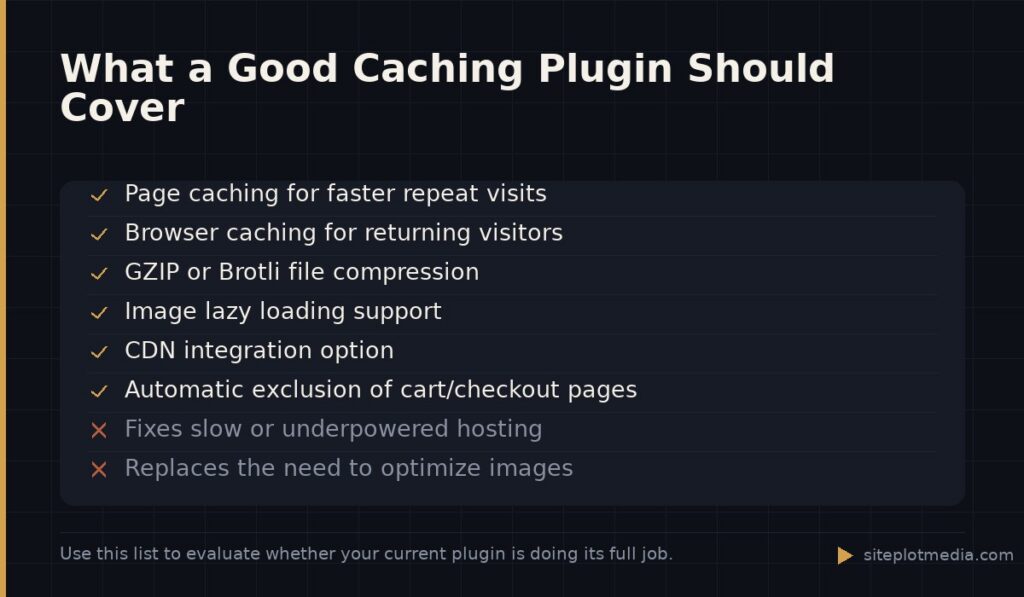
Basic page caching is just the starting point. A well-configured plugin should also handle several related tasks that compound into meaningful speed gains:
- Browser caching — Tells returning visitors’ browsers to store certain files locally so they do not re-download them on every page.
- GZIP or Brotli compression — Compresses files before they are sent to the browser, reducing transfer size.
- Minification — Strips unnecessary spaces and characters from CSS and JavaScript files. Useful, but test carefully — aggressive minification can break scripts.
- Lazy loading — Delays loading of images until they scroll into view, which improves the initial load speed score Google measures.
- CDN integration — Connects your site to a content delivery network so files are served from a location physically close to each visitor.
WP Rocket handles all of these in one interface. W3 Total Cache also covers them, but each setting lives in a different menu and the wrong combination can cause visible problems. If you are not technical, the simplicity premium of WP Rocket is genuinely worth its price.
Common mistakes that make caching plugins useless — or harmful
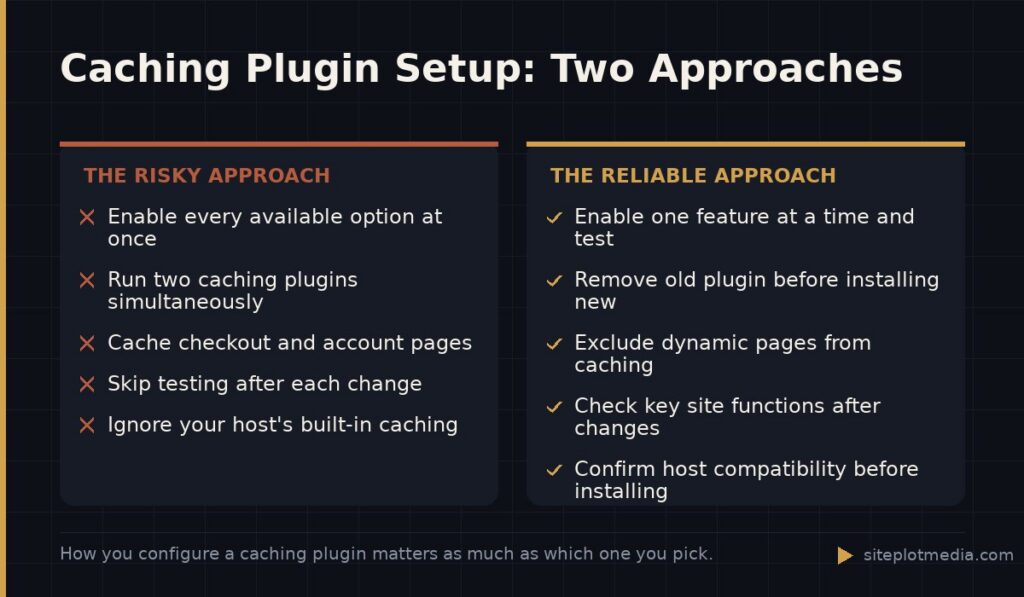
Installing a caching plugin and leaving it on default settings is better than nothing, but you will leave real performance on the table. The most common mistake is enabling every available option at once. Minification in particular is famous for breaking JavaScript-dependent features — sliders, checkout flows, contact forms — in ways that are not immediately obvious.
The second common mistake is running two caching plugins at the same time. We see this regularly on sites that have been patched together over the years: WP Rocket installed on top of W3 Total Cache, neither one working properly. If you are switching plugins, deactivate and delete the old one before activating the new one.
A third issue is caching pages that should never be cached: checkout pages, account dashboards, pages that show personalized content. WP Rocket handles most of these exclusions automatically. With W3 Total Cache you need to configure them manually, and missing one can cause real problems for customers — for example, showing one user another user’s cart.
When a caching plugin is not enough
If your Core Web Vitals scores are still poor after installing and properly configuring a caching plugin, the bottleneck is probably elsewhere. Common culprits include unoptimized images (the single most frequent cause of slow WordPress sites), bloated page builders adding large amounts of CSS and JavaScript to every page, too many active plugins, or an underpowered hosting plan.
A caching plugin is one layer of a performance stack, not a complete solution. For businesses where site speed is a genuine competitive factor — service businesses running Google Ads, e-commerce sites, or any site targeting competitive keywords — a holistic performance audit is worth the investment. If you are building a new site and want performance built in from the start rather than patched in later, that is the kind of work we scope into our builds at Siteplot Media.
Frequently asked questions
Is WP Rocket worth paying for when free caching plugins exist?
Yes, for most non-technical business owners WP Rocket is worth its annual cost because it configures correctly with minimal effort and covers more ground than any free alternative except LiteSpeed Cache. If your host supports LiteSpeed Cache, use that for free first — it is genuinely as good.
Can I use a caching plugin with a page builder like Elementor or Divi?
Yes, but test carefully after enabling minification and CSS/JS combination features, because page builders generate a lot of their own scripts that can break when aggressively compressed. Enable one setting at a time and check your site after each change.
Do I need a caching plugin if I'm on managed WordPress hosting?
Often no — hosts like Kinsta, WP Engine, and Flywheel include server-level caching and sometimes prohibit third-party caching plugins. Check your host's documentation before installing one.
Will a caching plugin improve my Google rankings?
A caching plugin can improve page speed, which is one of Google's ranking signals — but it is one factor among many and no plugin can promise ranking improvements. Faster pages help; they do not guarantee any specific position.
What is the best free WordPress caching plugin?
LiteSpeed Cache is the best free WordPress caching plugin if your host supports it. For hosts that do not run LiteSpeed servers, WP Super Cache is reliable and simple, though W3 Total Cache offers more power for those comfortable with technical configuration.