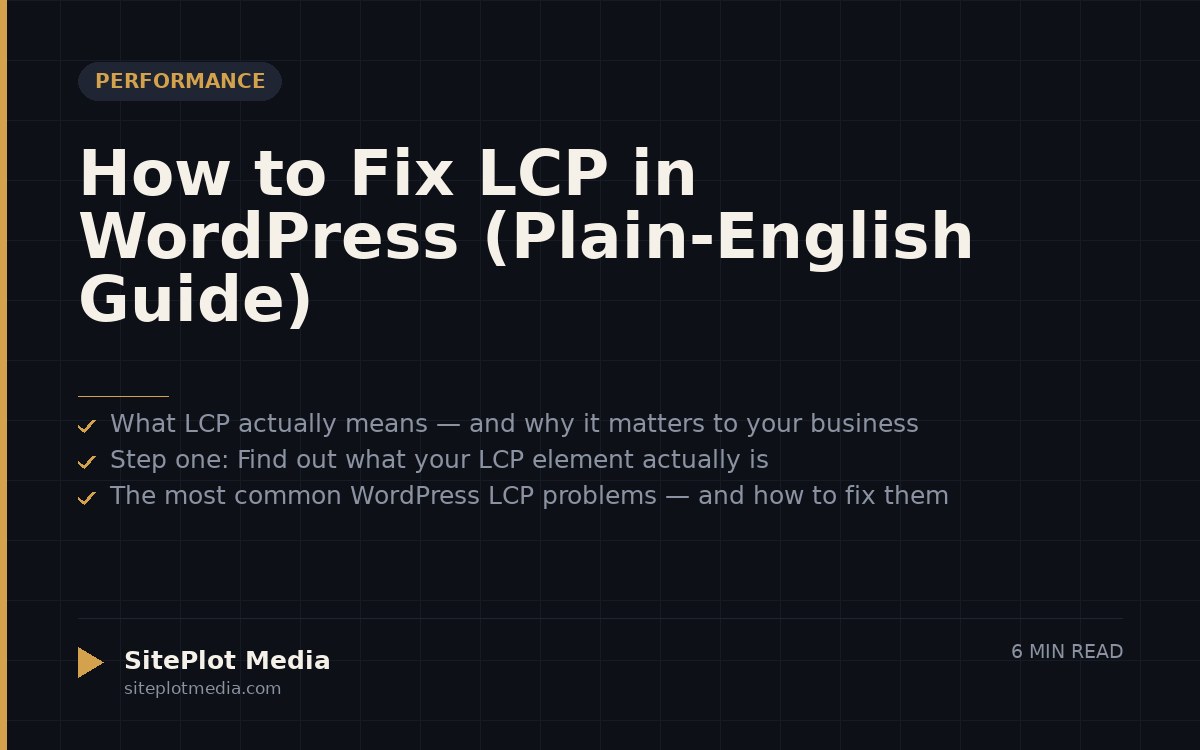
To fix Largest Contentful Paint on WordPress, you need to make the single biggest visible element on each page load as fast as possible — typically by serving images in a modern format, preloading your hero image, and removing anything that blocks the browser before that element can paint. Most WordPress sites can cut LCP significantly by addressing image optimization, a bloated theme or page builder, and slow hosting — in that order of priority.
What LCP actually means — and why it matters to your business
Largest Contentful Paint (LCP) is a Google metric that measures how long it takes for the biggest visible piece of content — usually a hero image, a banner headline, or a large photo — to fully appear on screen. Google uses it as a signal of whether a page feels fast to a real visitor. A good LCP score is under 2.5 seconds. Above 4 seconds is considered poor.
Why should you care? Slow LCP hurts you in two ways. First, visitors leave. A page that takes four seconds to show its main content loses a meaningful share of people before they ever read a word. Second, Google’s Core Web Vitals — of which LCP is the most important — are a confirmed ranking signal. You don’t need to obsess over tenths of a second, but if your LCP is in the “poor” range, fixing it is worth the effort.
The good news: most WordPress sites have the same three or four culprits, and fixing them doesn’t require a full rebuild.
Step one: Find out what your LCP element actually is
Before you fix anything, identify the problem. Open Google PageSpeed Insights (pagespeed.web.dev), paste your homepage URL, and run the test. Scroll down to the “Diagnostics” section and look for “Largest Contentful Paint element.” It will tell you exactly which element is the bottleneck — usually an image tag or a large text block.
Also check Google Search Console under Experience > Core Web Vitals. This shows field data from real visitors, which is more meaningful than a lab score. If PageSpeed shows green but Search Console shows red, the real-world experience is what counts.
Once you know the element, every fix below becomes much easier to prioritize. If your LCP element is a hero image, image optimization is your first move. If it’s a block of text, render-blocking scripts are more likely the issue.
This is the kind of thing we handle day to day — you can see how our build process works or browse recent work.
The most common WordPress LCP problems — and how to fix them
Here are the causes responsible for the majority of poor LCP scores on WordPress sites, roughly in order of how often we see them:
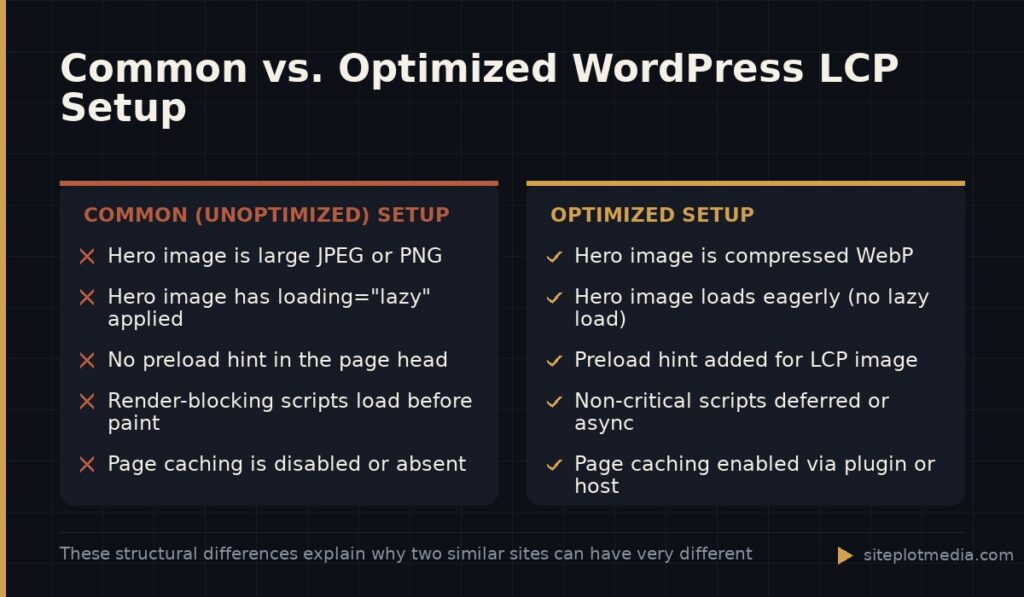
- Unoptimized hero image. A large, uncompressed image in JPEG or PNG format is the single most common LCP killer. Convert it to WebP (a modern format that’s typically a fraction of the file size with no visible quality loss), compress it, and set the correct width and height attributes in your theme or page builder. Plugins like Imagify, ShortPixel, or Cloudflare’s image optimization can automate this.
- Missing or incorrect preload hint. Your browser doesn’t know your hero image is important until it’s already parsing the page. Adding a preload link tag —
<link rel="preload" as="image">— in your site’s<head>tells the browser to fetch that image immediately. Many caching plugins (LiteSpeed Cache, WP Rocket) have a setting for this. - Lazy-loading the LCP image. WordPress added lazy loading to images by default in version 5.5. That’s great for images below the fold, but if your LCP image is being lazy-loaded, the browser intentionally delays fetching it. Remove the
loading="lazy"attribute from your hero image specifically. Some themes and builders do this automatically — check yours. - Render-blocking scripts and stylesheets. If your theme loads a large CSS file or a JavaScript library before the LCP element can paint, your score suffers. Use the “Eliminate render-blocking resources” recommendation in PageSpeed to identify offenders. Deferring or async-loading non-critical scripts through your caching plugin is usually the fix.
- Slow server response (TTFB). Time to First Byte measures how long the server takes to respond at all. If TTFB is over 600 milliseconds, your LCP will struggle no matter what else you do. A good caching plugin with page caching enabled, or switching to a faster host, addresses this at the root.
The honest truth about page builders and heavy themes
If you built your site with a popular drag-and-drop page builder — Elementor, Divi, WPBakery — you should know that these tools add a meaningful amount of CSS and JavaScript to every page, some of which loads before your LCP element can render. That’s an architectural trade-off, not a defect. They make design flexible; they cost performance.
This doesn’t mean you need to abandon your page builder. Many sites built with these tools achieve acceptable LCP scores with careful optimization. But if your LCP is stubbornly above 4 seconds and you’ve tried everything else, the builder’s output may be the ceiling. A leaner theme or a block-based build (using WordPress’s native editor) will produce faster baseline performance than a heavily layered page builder setup.
Be skeptical of any plugin claiming to “fix” your page builder’s performance automatically. These tools can help, but they don’t eliminate the underlying weight — they manage it. Know what you’re working with before investing in optimization time on a foundation that may be limiting you.
What a realistic optimization process looks like
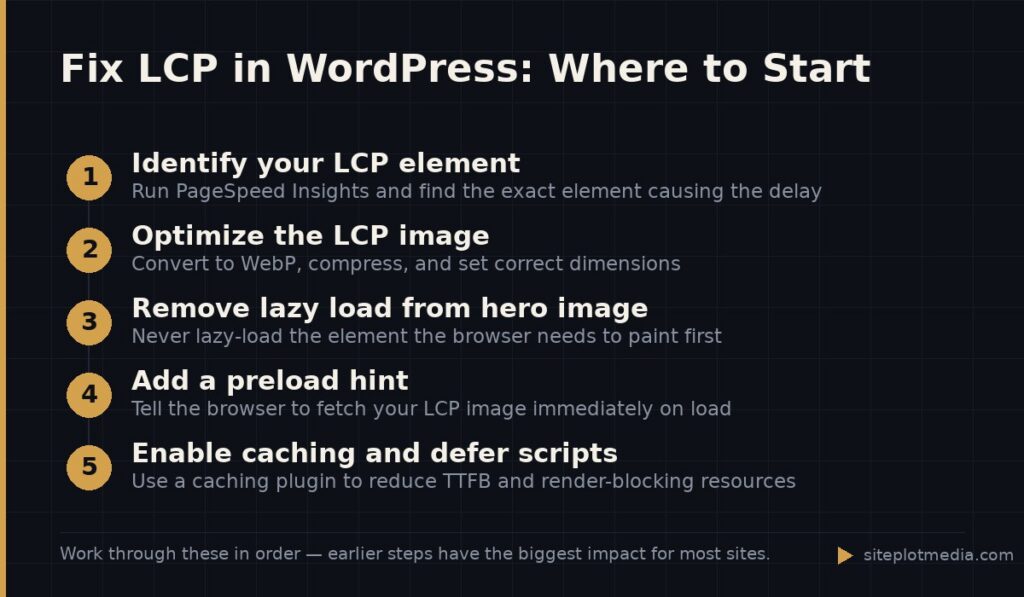
Here’s a practical sequence for a business owner or their developer to follow. You don’t have to do everything at once — start with the highest-impact items first.
- Identify your LCP element in PageSpeed Insights.
- Convert and compress that element (usually a hero image) to WebP.
- Remove
loading="lazy"from the LCP image if it’s present. - Add a preload hint for the LCP image in your site’s head section.
- Install and properly configure a caching plugin (WP Rocket, LiteSpeed Cache, or W3 Total Cache are the most commonly used).
- Enable page caching and static file caching at minimum.
- Defer or async-load non-critical JavaScript.
- Check your hosting tier — shared hosting on an overcrowded server will undercut every other fix.
- Re-run PageSpeed after each change so you understand what moved the needle.
Expect the process to take several hours if you’re doing it carefully, or a few days if you’re testing changes in staging before pushing to production (which is the right approach). Results vary by site. A simple brochure site on decent hosting can often reach a good LCP score with image fixes alone. A large e-commerce site with dozens of plugin dependencies is a more involved project.
When it makes sense to bring in a professional
If you’ve worked through the steps above and your LCP is still poor, or if you don’t have a developer on your team, the calculus changes. Misapplying caching rules, incorrectly deferring scripts, or altering your theme’s head section without knowing what you’re touching can break functionality — sometimes in ways that aren’t immediately obvious.
A web performance specialist can audit your specific setup, identify what’s actually causing the bottleneck, and fix it without breaking other things. Costs vary considerably by scope: a focused performance audit and remediation engagement typically runs from a few hundred dollars for a simple site to several thousand for a complex one. For businesses that want a fully performance-optimized build from the start — not a retrofit — Siteplot Media offers a site build package starting at $5,000 one-time with ongoing support included for the first 90 days, then $500/month. That’s one option; others exist, and the right choice depends on what you’re starting with and what your goals are.
The honest answer: if your current site is structurally sound and just needs tuning, fix it where it is. If you’re fighting architecture, a rebuild may cost less in the long run than years of optimization workarounds.
Frequently asked questions
What is a good LCP score for a WordPress site?
A good LCP score is 2.5 seconds or under, measured at the 75th percentile of your real visitors. Scores between 2.5 and 4 seconds need improvement, and anything above 4 seconds is considered poor by Google's Core Web Vitals standards.
Will fixing LCP improve my Google rankings?
Fixing LCP can contribute to better rankings because Core Web Vitals are a confirmed Google ranking signal, but it is one factor among hundreds. Improving LCP is unlikely to be a dramatic ranking lever on its own — it matters most when other fundamentals like content quality and backlinks are already solid.
Does lazy loading hurt LCP?
Yes, if lazy loading is applied to your LCP image it will directly hurt your score, because the browser intentionally delays fetching that image. Remove the lazy-load attribute specifically from your above-the-fold hero image while keeping it on images lower on the page.
What's the fastest fix for a bad LCP score in WordPress?
Converting and compressing your hero image to WebP format is usually the single highest-impact change you can make. Combine that with removing lazy loading from that image and adding a preload hint, and many sites see a meaningful improvement before touching anything else.
Do I need a caching plugin to fix LCP?
A caching plugin isn't always required to fix LCP, but it addresses several contributing factors at once — server response time, static file delivery, and script deferral — making it a practical step for most WordPress sites. If your host provides server-level caching (some managed WordPress hosts do), a separate plugin may not be necessary.